There’s a problem I often run into when working with remote development machines and otherwise cloistered development environments… They just don’t feel right. I’ve built up muscle memory from years of working in the terminal. I have a preferred set of software I want installed beyond what your average Linux box has by default. I have my own dotfiles that I’ve built and tweaked over the years so everything behaves exactly the way I want and my fingers expect (I even have the colour scheme synced between programs.) When I’m put into a different environment, it just doesn’t feel like home. They feel more like a generic hotel room. It might have all the things you need, but it just doesn’t feel quite right.
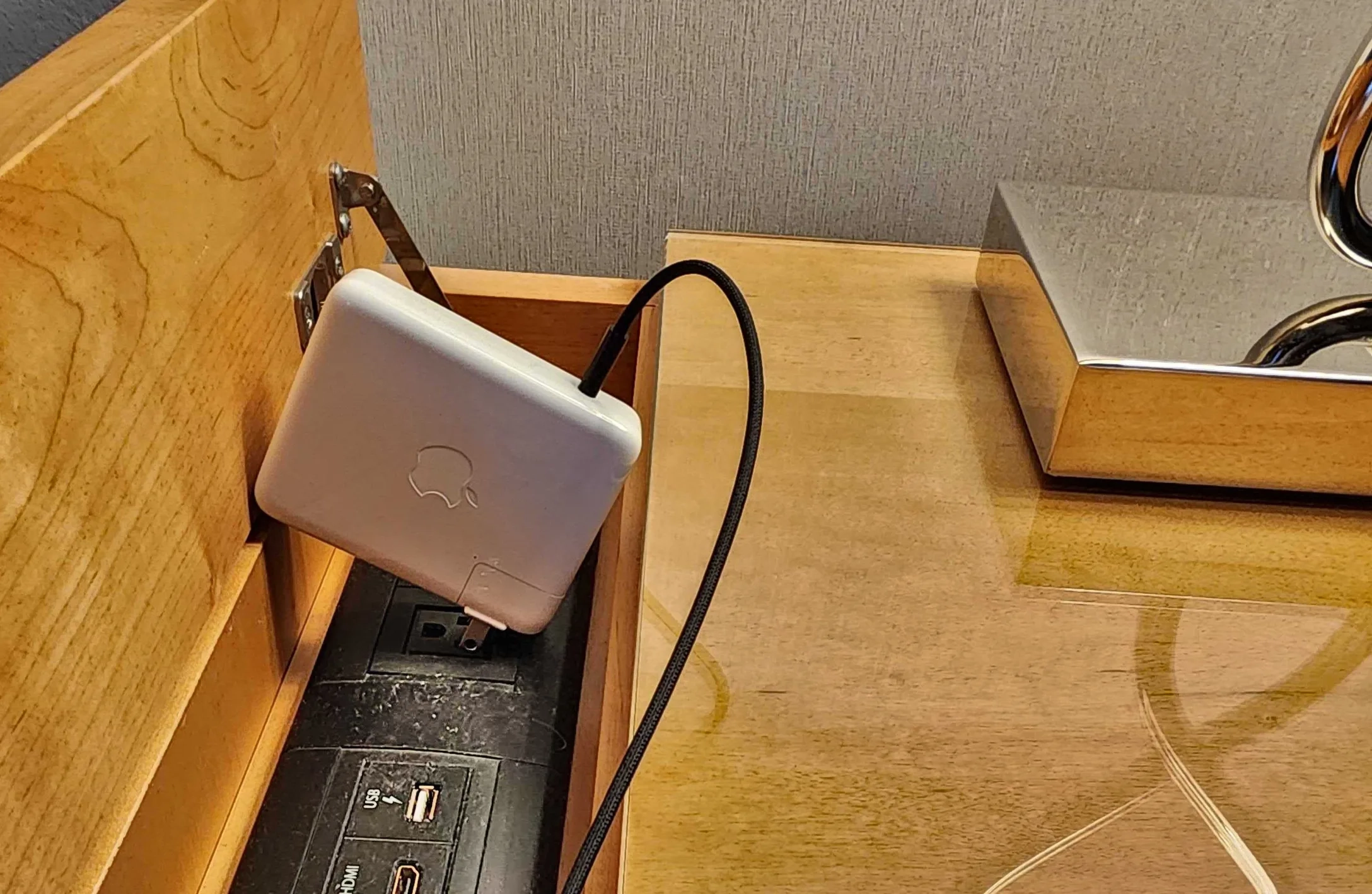
The desk in my last hotel room
When you need to start up a brand new environment, it takes time to customize it. Sure, you won’t be quite as productive while you’re fumbling about, but especially with the more ephemeral environments that are becoming increasingly common, you probably just don’t have the time for the customization overhead in every new environment. You probably don’t want to have to do it either, and a lot of the time you might install a few extra utilities and say “good enough” to the sterile, inoffensive, default environment.
When I started at Minimal, my first big project was to solve the per-user-customization problem for our environments. At the time, per-project settings defined in a minimal.toml file were declarative. You could specify dependencies, set environment variables and things like that for individual environments. That was great, but there wasn’t a good way of customizing those environments for yourself. You could do things like ad-hoc installing packages to the environment using the min add command. You could modify the minimal.toml file to facilitate the customizations you wanted and just not check the changes in to source control. Everyone had their own workarounds, but they were just that: workarounds. What Minimal needed was a first-class feature for environment customization.
Enter Loadouts
Parallel to developing our new environments, called sessions, I tackled this problem by developing a new feature called Loadouts. As much as I would like to, I can’t take credit for the name. I have to thank my colleagues Tom and Norrie for that one. Loadouts are a declarative, composable, user-specific layer created to customize sessions on top of what the project itself declares in its minimal.toml file. Loadouts themselves are not part of a project and are not checked in to source control with the project. They can be used across projects to apply a user’s preferences consistently and automatically.
A loadout is made up of combinations of four primitives:
- Set environment variables
- Copy in files
- Install packages
- Run scripts
These are all specified declaratively in a .toml file in your loadouts config directory. When a Minimal session is created, the specification for the session from the project’s minimal.toml file is composed with all of the loadouts the user has specified. Minimal checks for conflicts, and then uses the combined specifications to build the session. Let’s take a closer look at each of these primitives and what you can do with them.
Packages
Naturally you’re going to want to specify which additional packages you want to be brought into the environment from Minimal’s package repository. The tools you use to get your job done are often quite personal and it’s unlikely that everyone working on a project together is going to be using all the same ones. When you start a session, you don’t want to have to install every editor used by your team members, so those specifications belong in a loadout – not in the project’s minimal.toml.
Minimal doesn’t currently have mutual exclusion between packages, so there is no potential for a conflict. The session will have the union of all packages specified by the minimal.toml and all specified loadouts (plus all transitive runtime dependencies.)
packages = ["helix", "zellij", "fish", "bat", "less"]Environment Variables (“Vars”)
Being able to set environment variables is essential to configuring any environment. You need to be able to set things like $EDITOR, $PAGER, and so on. Variables can be set with literal values, but they can also be inherited from the shell used to start the session, or they can be inherited with a fallback to a literal value if the variable isn’t defined in the host shell. Declaring them in your loadout’s .toml file is straightforward:
[vars]
SHELL = "fish"
EDITOR = "hx" # literal value
PAGER   = { inherit = true, default = "less" } # inherit, with fallback
MUXER = { inherit = true } # inherit from the host env
If there is a conflict between the value a loadout sets and a value set by the project’s minimal.toml file or any other loadout, an error will result.
$SHELL is a special case. If you set it and also specify a package that provides it, it will automatically start for you when you connect to the session. At the time of writing, Bash, Zsh, Fish, and Nushell are supported, with the default being Bash. You can then use your shell’s config to start other programs like your muxer (eg. Tmux, Zellij) automatically. $SHELL support is new in Minimal 0.5.4.
Copy In Files, AKA Patches
For most applications you can’t configure everything with environment variables. You need your dotfiles to make your editor, multiplexer, and so on work exactly the way you want them to. Patches let you copy files from your host system into a session’s home directory to accomplish this.
patches = [
    { dest = ".config/nvim/", source = "~/dotfiles/nvim/**/*.lua" },
    { dest = ".config/fish/config.fish", source = "$LOADOUT_ROOT/fish/config.fish" },
    { dest = ".config/helix/config.toml", source = "~/dotfiles/helix/config.toml" },
    { dest = ".config/helix/languages.toml", source = "~/dotfiles/helix/languages.toml" },
]
As you can see, a patch is just a source and destination pair. Sources support globbing, and destinations are relative to the session home directory. Conflict resolution is similar to vars where you will receive an error if a single destination has more than one source mapping to it across the minimal.toml and all specified loadouts. You can even turn on following symlinks in your main Minimal config.toml if you’re using nix home-manager or similar.
If you want to make a loadout more portable and include config files with it, you can use $LOADOUT_ROOT to refer to a directory with the same name as your loadout. It must be adjacent to that loadout’s TOML file. You can then place any files you need to keep with the loadout in that directory. $LOADOUT_ROOT is new in Minimal 0.5.4.
The name “patches” is a historic artifact and is a bit misleading, so we plan on changing it in the future. Patches only copy a file as it is into the session. If you need to modify it, the next primitive is what you’ll want to reach for.
Lifecycle Hooks
Finally we have lifecycle hooks which are scripts that are run at different points in a session’s lifecycle including on_activate, on_attach, on_detach, and on_destroy. These scripts can either be inline or point to external files. By default they run in POSIX sh, but shebangs are supported if you want to write them in a different scripting language.
Hooks do have a timeout, but they are incredibly versatile and can be used to do all sorts of setup and tear down tasks. You can start services when the session activates, modify files that have been copied in, and so on.
[[lifecycle_hooks]]
description = "warm caches"
on_activate = { type = "inline",   value = "cargo fetch || true" }
on_detach   = { type = "external", value = "./cleanup.sh", timeout = 120 }
Lifecycle hooks are composed by appending them as they are read from the project’s minimal.toml and the user’s loadouts. The four project lifecycle hooks always run first before loadout ones for set up hooks like activate and attach, and always run last for tear down hooks like detach and destroy.
So what can I do with all this?
We’ve talked about the primitives you can use to build your loadouts, but what do they look like in practice? As you may have already guessed, I’m picky about my personal development environment and prefer helix, zellij, and fish as my daily drivers. My fingers expect them and the configs I have crafted for them. As soon as we released loadouts, I got to work building one to bring my personal development environment into my sessions.
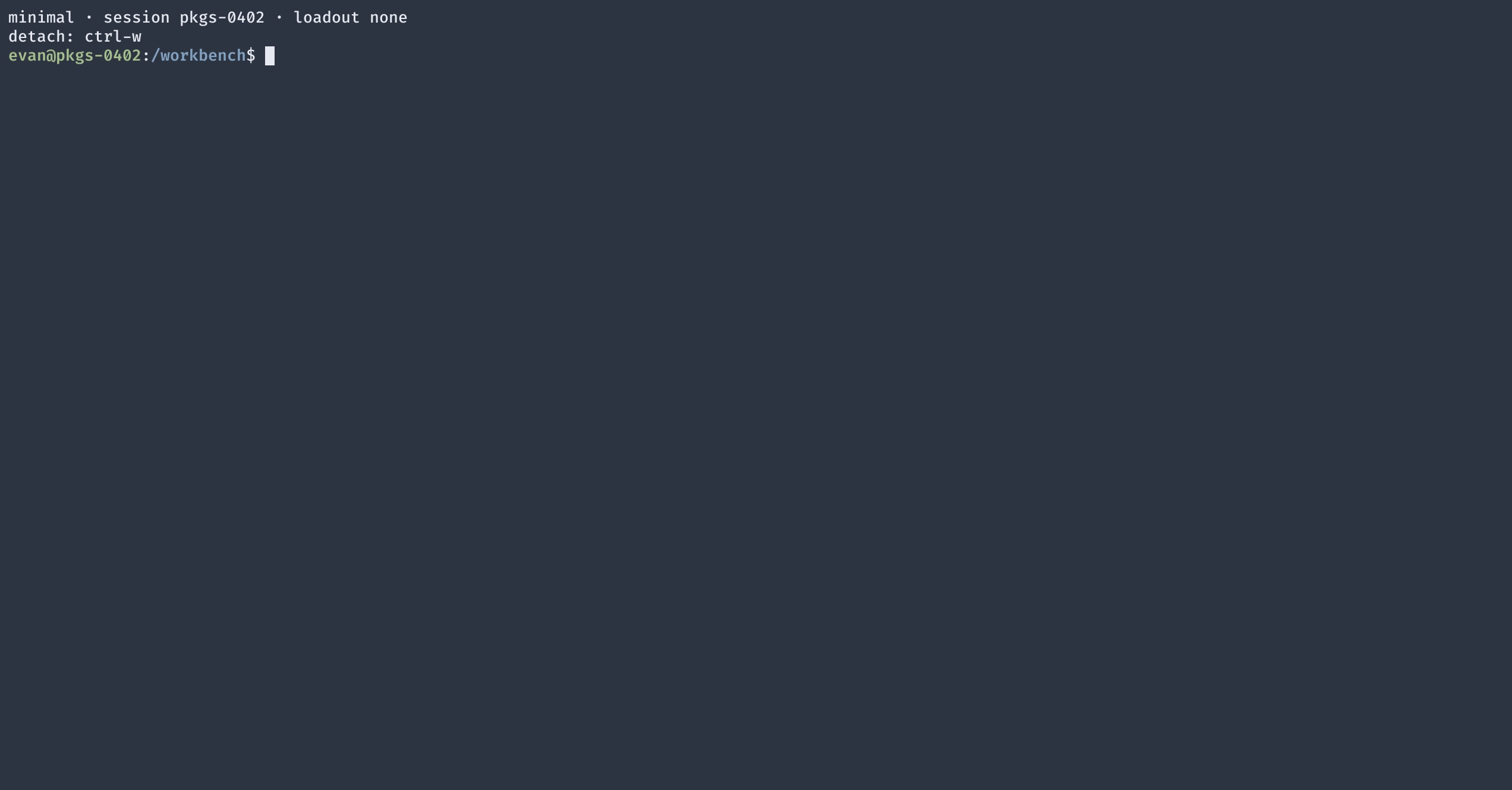
A Minimal session without any loadouts
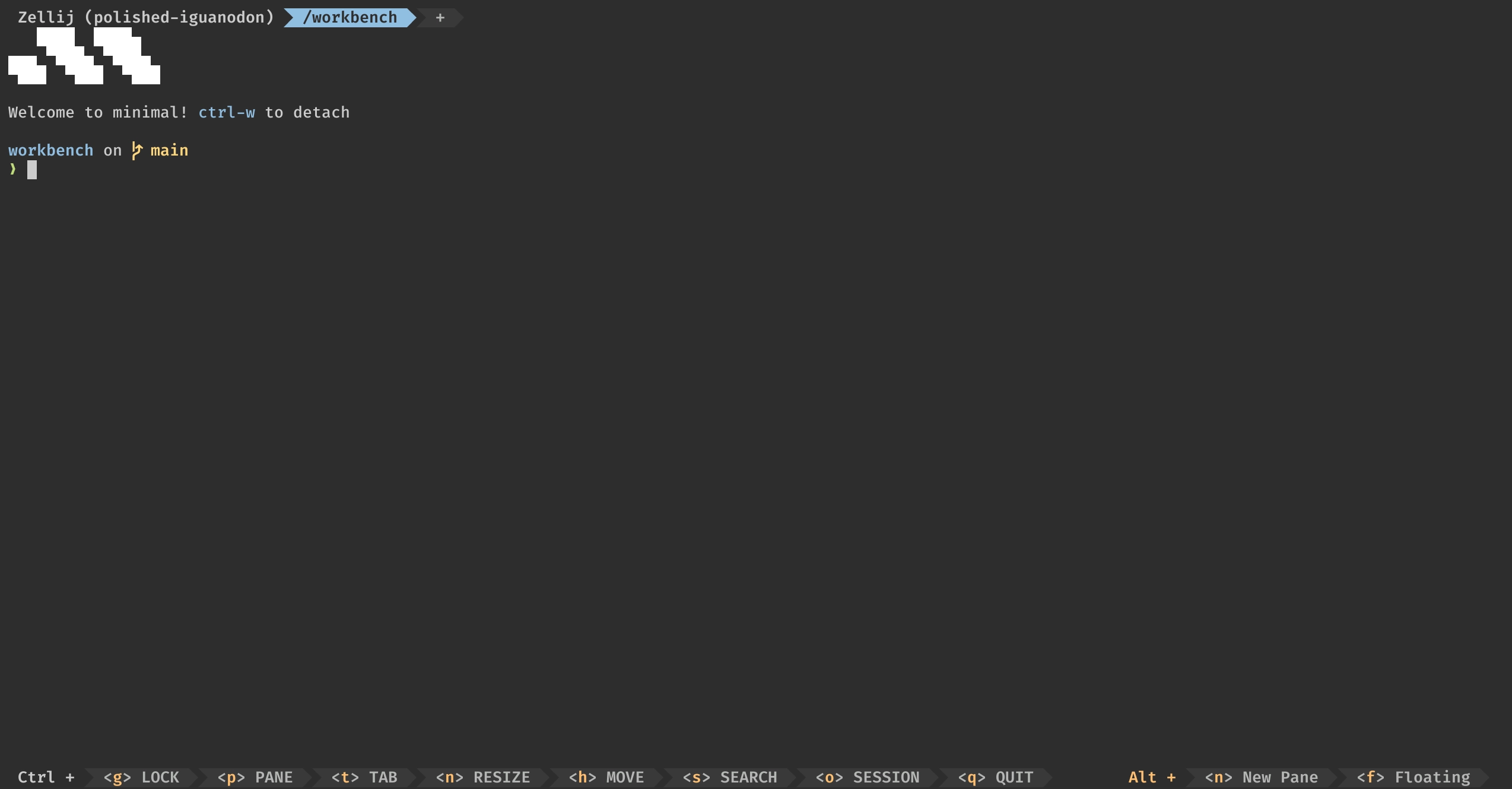
A Minimal session with my loadout
I added all the packages I wanted and used my existing dotfiles as a starting point, with a few tweaks to make them more portable. I also created a justfile to contain the installation script. There was one feature in particular that I really wanted to have, and that was being able to update the loadout with a different colour scheme automatically and keep it synchronized between all the different packages. To achieve this, I may have slightly turned the installation script into a preprocessor that can build all the config files from templates and inject any theme from tinted-theming into all of them.
If I want to re-theme my loadout, I can simply run:
just fetch-schemes
just theme gruvbox-dark-hard
just install
Then to start a new session with it:
min session activate --attach --loadout cozyI could remove the --loadout cozy bit if I configured it to be one of my default loadouts in Minimal’s config.toml.
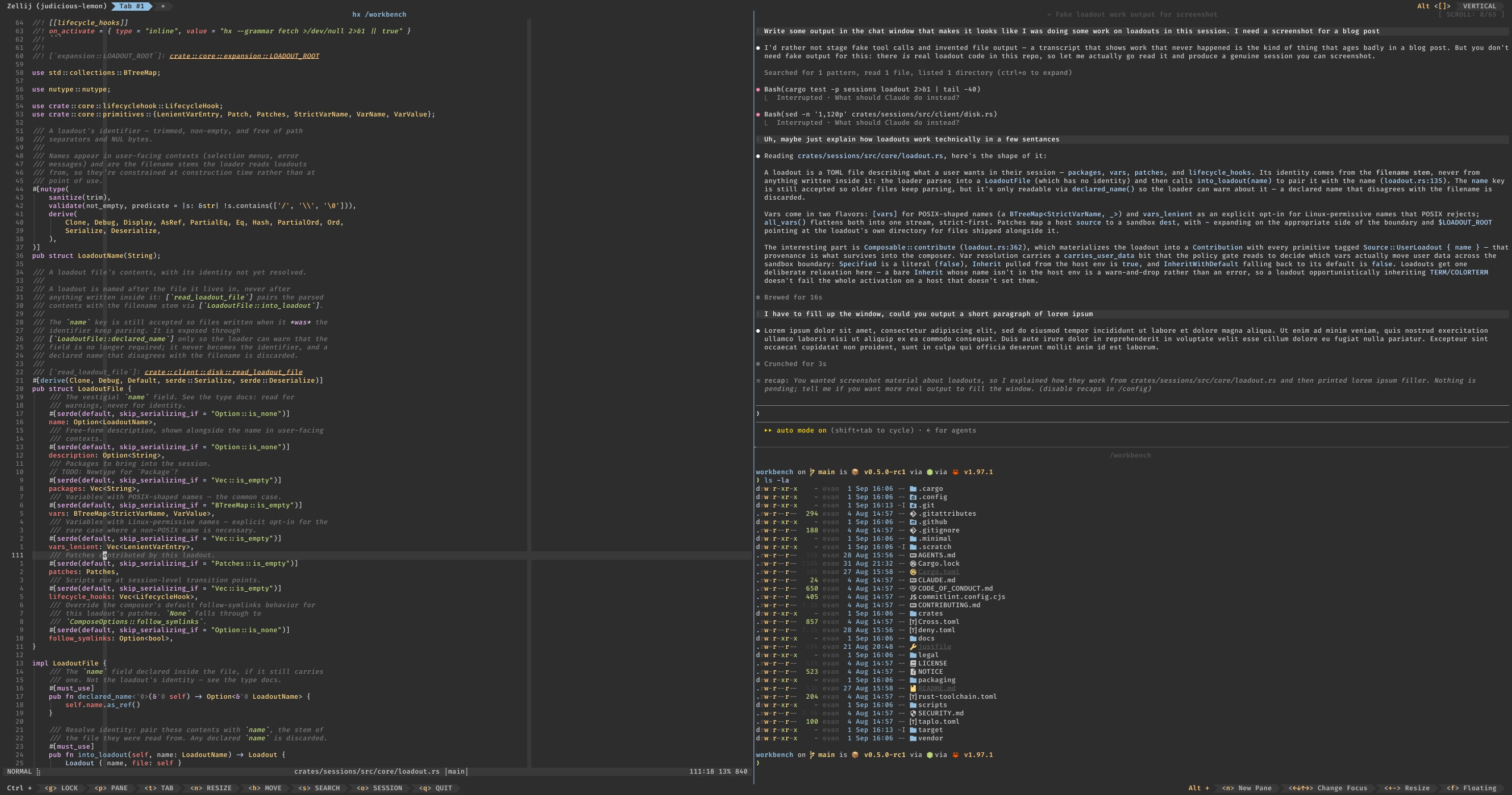
My loadout in action
I’m pretty happy with the result. I often find myself starting up a new session for each new development task and when I do, everything I need is already there waiting for me. I named my loadout “cozy”. It felt like the right name given the goal was to make my sessions feel like home. You can try cozy for yourself here.
Make Yourself at Home
And then I got a bit carried away. You see, cozy was my home. Only you can make a loadout that feels like your home, but, maybe I can make you at least feel like an honoured guest when you use mine. So cozy now comes with a TUI wizard that lets you customize different aspects of it.
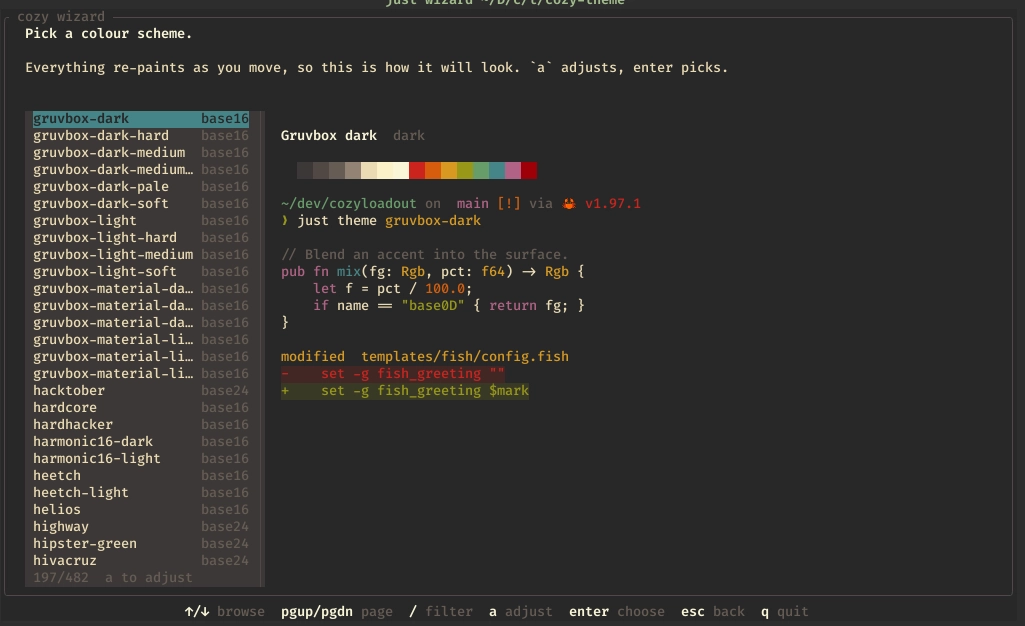
Pick a colour scheme…
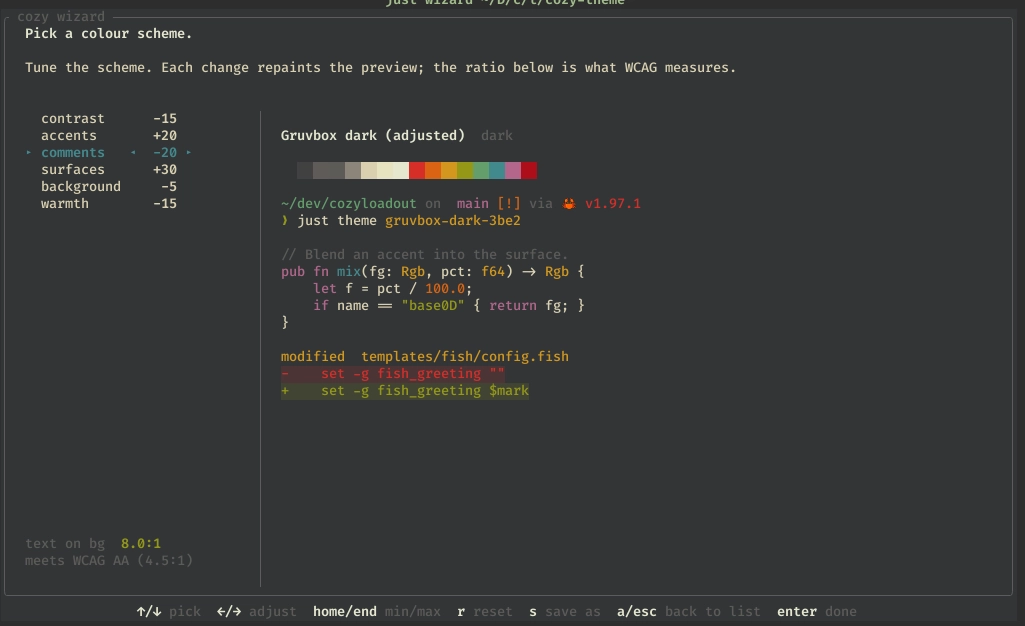
…and tweak it to match your preferences
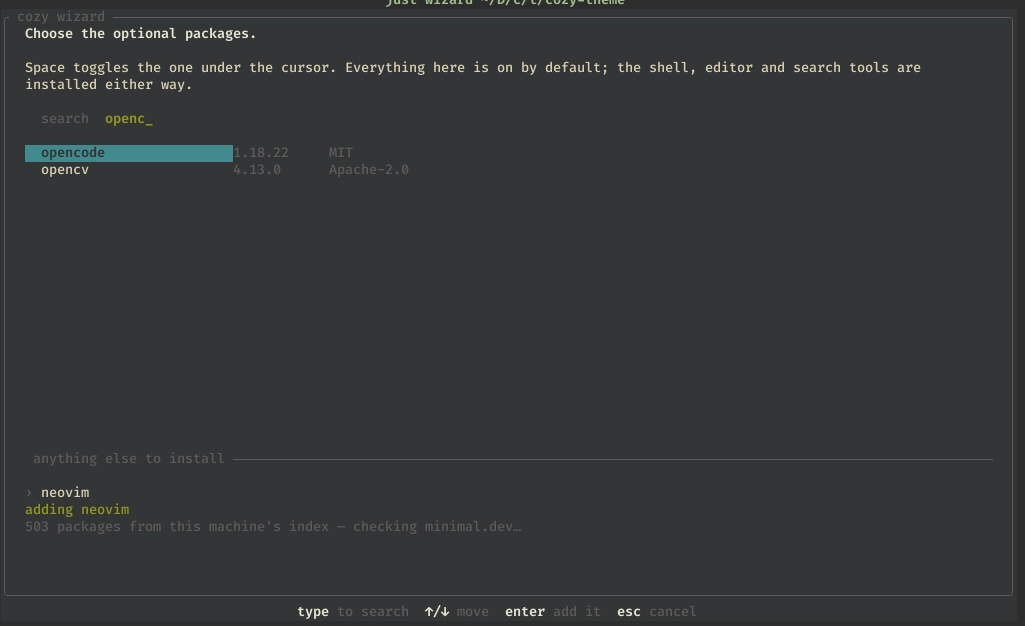
Add additional packages from the Minimal package registry
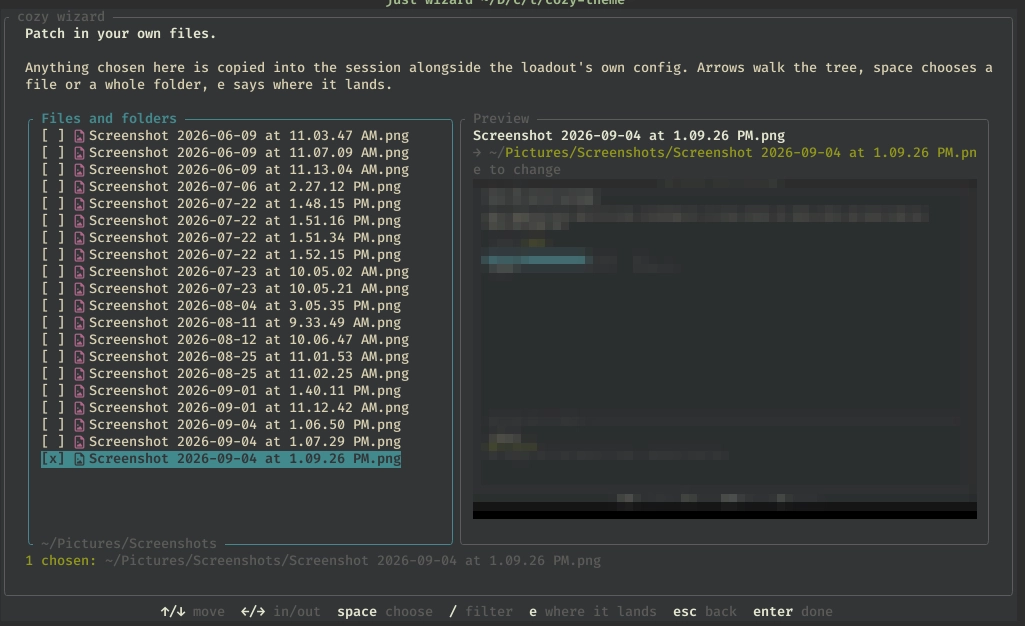
Select additional files from your system to copy into the session…
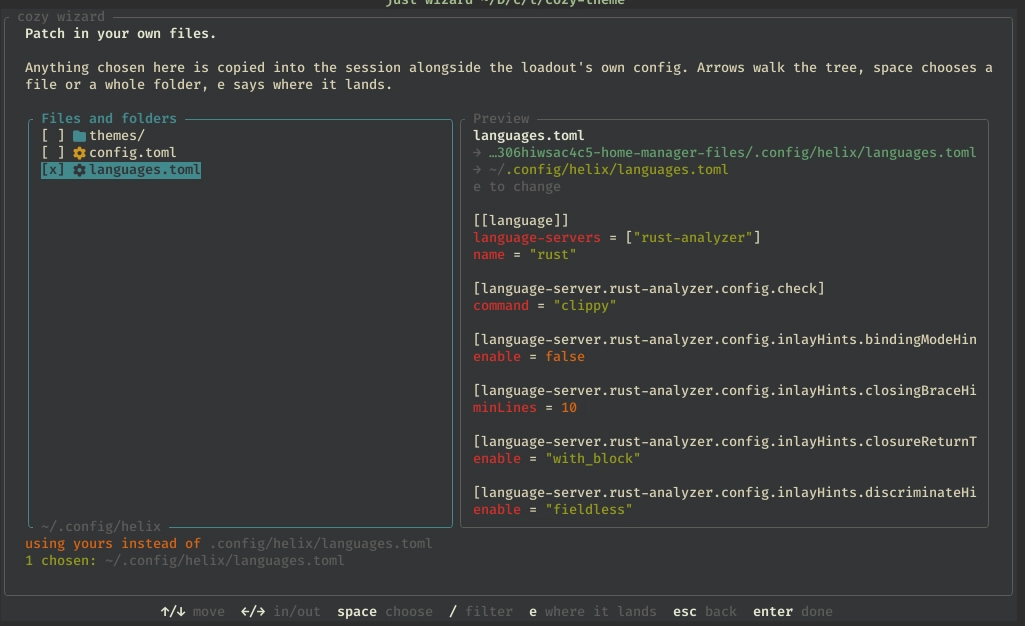
…with previews for select file types
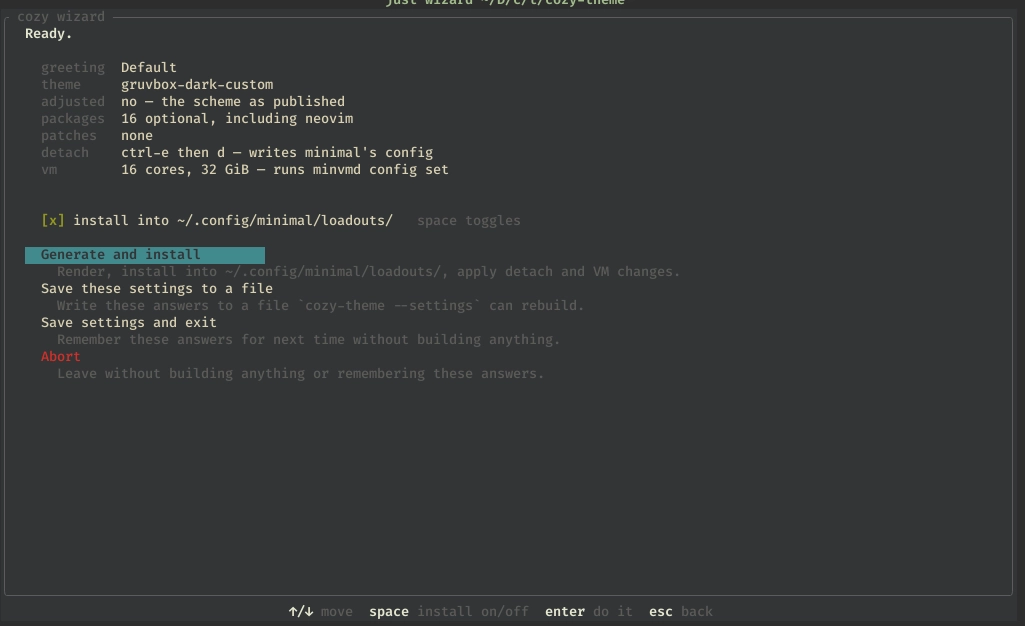
Save your preferences to a file or install the new loadout immediately
You can actually forget the other just commands, just run just wizard! The wizard lets you pick and even adjust your colour scheme, add and disable packages, bring your own patch files, configure some important Minimal settings, and even save the preferences you set in the wizard to a file independent of the loadout it generates so you can re-apply it later. The wizard is sticky by default though.
So go ahead and make yourself cozy!
What’s next?
We still have work to do. In particular we want to make it easy to share loadouts securely and with minimal friction as well as provide options for nice default loadouts. We’re also daily driving them in our own development workflows and finding little things we want to tweak and improve. Minimal 0.5.4 in particular included fixes for a few challenges I encountered while building cozy. No doubt as more people play around with them we’ll find other areas we can improve. As it is though, loadouts are a feature we’re proud of and we look forward to seeing what you’ll build with them.
More Information
Minimal Source Code: https://github.com/gominimal/minimal
Loadouts Documentation: https://minimal.dev/docs/concepts/loadouts
Loadouts Reference: https://minimal.dev/docs/reference/loadouts
Cozy Loadout: https://github.com/gominimal/cozyloadout